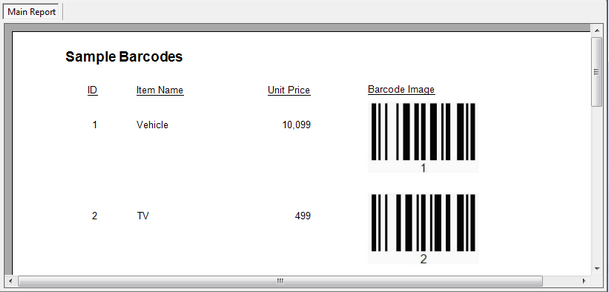
How to Generate Barcodes in Crystal Reports? |
  
|
How to Generate Barcodes in Crystal Reports? |
|
Follow the instructions below step by step:
1.Create a Windows Application.

2.Add a new DataSet to the project.
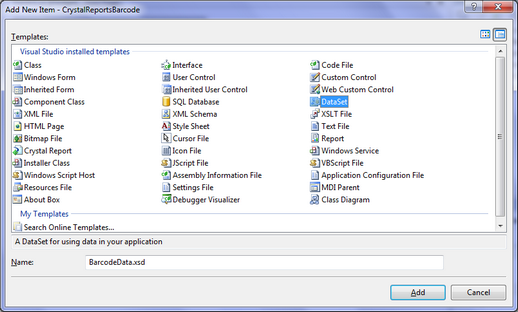
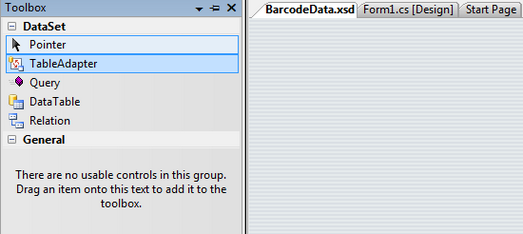
3.Add a TableAdapter to the newly created DataSet, and follow the wizard instructions to finish the configuring process.
4.Add a new Column to the DataTable.
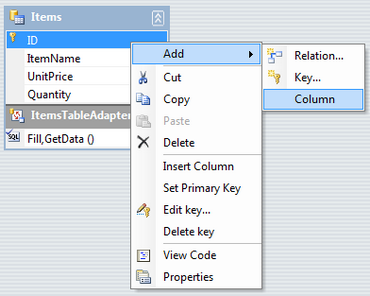
5.Change the data type of the newly created Column by manually entering System.Byte[] there.

6.Add a new Crystal Report item to the project.

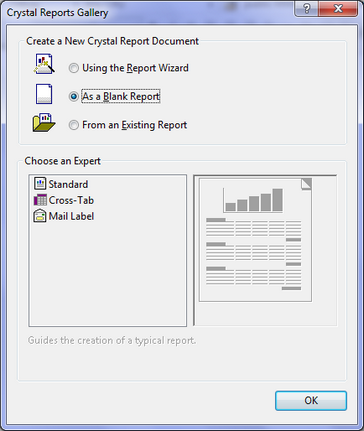
7.Click the "Add" button, choose "As a Blank Report" in the Crystal Report Gallery dialog and click the "Ok" button.
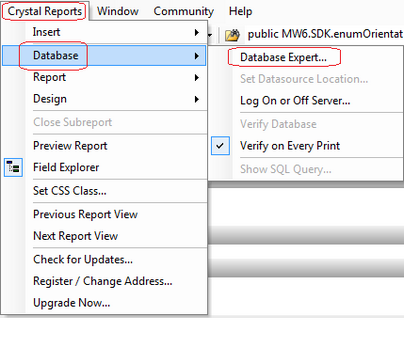
8.Click "Crystal Reports" > "Database" > "Database Expert ...".
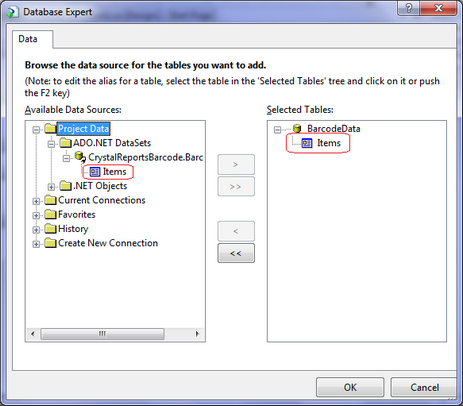
9.In the "Database Expert" dialog, select the DataTable created in the step 3 & 4, so it appears in the "Selected Tables", then click the "OK" button.
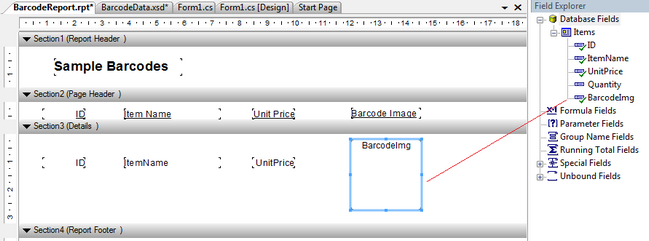
10. Drag and drop a few fields from the "Field Explorer" onto the report.
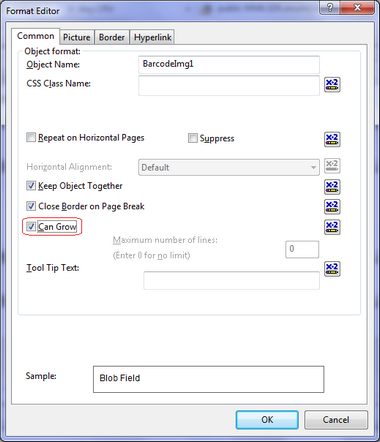
11.Open up the "Format Editor" dialog for the barcode image field to turn on the "Can Grow" feature, and save the report.
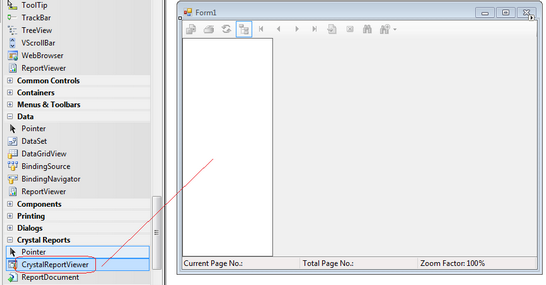
12. Drag and drop a "CrystalReportViewer" control onto a Windows Form.
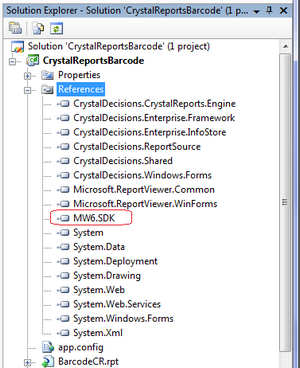
13.From the Solution Explorer, add a reference to MW6.SDK.dll.
14. Add the following code in the Form_Load event procedure, you could modify the code a bit to meet your application barcoding requirements.
C# Code
private void Form1_Load(object sender, EventArgs e) { int ActualWidth = 0; int ActualHeight = 0;
// Fill the DataTable BarcodeDataTableAdapters.ItemsTableAdapter dta = new BarcodeDataTableAdapters.ItemsTableAdapter(); BarcodeData.ItemsDataTable dt = new BarcodeData.ItemsDataTable(); dta.Fill(dt);
// Create a BarcodeNet class instance MW6.SDK.Barcode.BarcodeNet objBC = new MW6.SDK.Barcode.BarcodeNet();
objBC.SymbologyType = MW6.SDK.Barcode.enumSymbologyType.Code_128; objBC.BarHeight = (float)2.0; objBC.NarrowBarWidth = (float)0.07; objBC.CheckDigit = false; objBC.ShowText = true;
foreach (BarcodeData.ItemsRow dataRow in dt.Rows) { System.IO.MemoryStream MS = new System.IO.MemoryStream();
objBC.Data = dataRow.ID.ToString();
// Get the actual barcode width and height // Render the barcode on the computer screen objBC.GetActualSize(true, null, ref ActualWidth, ref ActualHeight);
// Image size = barcode size + extra space objBC.SetSize(ActualWidth + 10, ActualHeight + 20);
// Save the barcode image in memory using Jpeg format objBC.SaveAsMemory(MS, System.Drawing.Imaging.ImageFormat.Jpeg);
dataRow.BarcodeImg = MS.ToArray(); }
BarcodeReport bReport = new BarcodeReport(); bReport.SetDataSource((DataTable)dt);
crystalReportViewer1.ReportSource = bReport; } |
VB.NET Code
Private Sub Form1_Load(ByVal sender As Object, ByVal e As System.EventArgs) Handles Me.Load Dim ActualWidth As Integer Dim ActualHeight As Integer ActualWidth = 0 ActualHeight = 0
' Fill the DataTable Dim dta As New BarcodeDataTableAdapters.ItemsTableAdapter() Dim dt As New BarcodeData.ItemsDataTable() dta.Fill(dt)
' Create a BarcodeNet class instance Dim objBC As New MW6.SDK.Barcode.BarcodeNet()
objBC.SymbologyType = MW6.SDK.Barcode.enumSymbologyType.Code_128 objBC.BarHeight = 2.0f objBC.NarrowBarWidth = 0.07f objBC.CheckDigit = False objBC.ShowText = True
Dim dataRow As BarcodeData.ItemsRow For Each dataRow In dt.Rows Dim MS As New System.IO.MemoryStream()
objBC.Data = dataRow.ID.ToString()
' Get the actual barcode width and height ' Render the barcode on the computer screen objBC.GetActualSize(True, Nothing, ActualWidth, ActualHeight)
' Image size = barcode size + extra space objBC.SetSize(ActualWidth + 10, ActualHeight + 20)
' Save the barcode image in memory using Jpeg format objBC.SaveAsMemory(MS, System.Drawing.Imaging.ImageFormat.Jpeg)
dataRow.BarcodeImg = MS.ToArray Next
Dim bReport As New BarcodeReport() bReport.SetDataSource(CType(dt, DataTable))
crystalReportViewer1.ReportSource = bReport End Sub |
15. Run the application to view the barcodes.