Add Barcodes |
  
|
Add Barcodes |
|
Follow the instructions below to add barcodes to the report.
1.Please copy MW6.SDK.dll to "C:\Program Files\Microsoft Visual Studio X\Common7\IDE\PrivateAssemblies" for 32 bit OS or "C:\Program Files (x86)\Microsoft Visual Studio X\Common7\IDE\PrivateAssemblies" for 64 bit OS, the X value is associated with Visual Studio .NET version, it might be 8 for .NET 2005, 9.0 for .NET 2008, 10.0 for .NET 2010, 11.0 for .NET 2012.
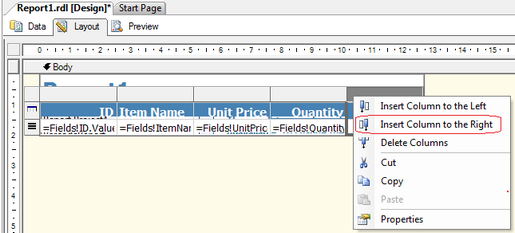
2.Right click the last column in the table, Select the "Insert Column to the Right".
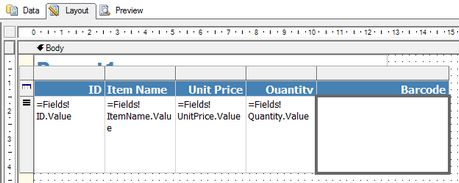
3.Change the column title to the "Barcode".
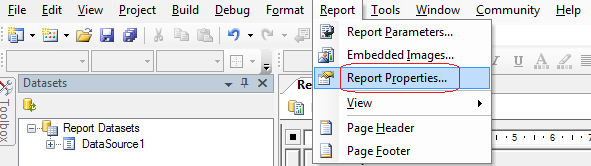
4.On the "Report" menu, click the "Report Properties", click the "References" tab.
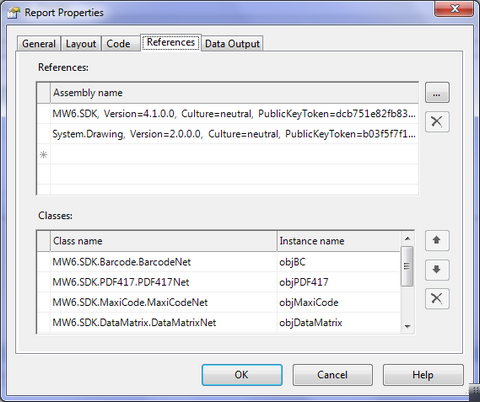
5.Click the two-dot button  to open the "Add Reference" dialog.
A. Click the "Browse" tab, navigate to the location of the assembly MW6.SDK.dll, select the file and click the "Add" button.
B. Add "System.Drawing" to the "References" list.
C. Enter 6 classes for the "Class name" box and 6 instance names, which are illustrated as below.
Class Name |
Instance Name |
MW6.SDK.Barcode.BarcodeNet |
objBC |
MW6.SDK.PDF417.PDF417Net |
objPDF417 |
MW6.SDK.MaxiCode.MaxiCodeNet |
objMaxiCode |
MW6.SDK.DataMatrix.DataMatrixNet |
objDataMatrix |
MW6.SDK.QRCode.QRCodeNet |
objQRCode |
MW6.SDK.Aztec.AztecNet |
objAztec |
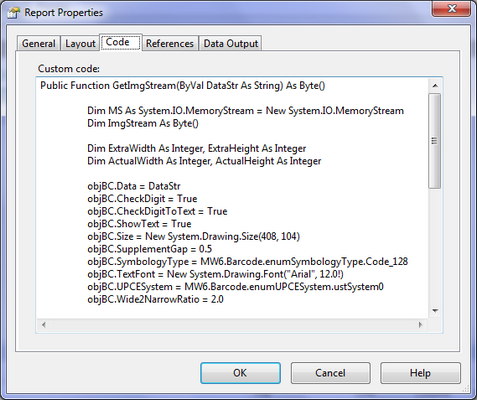
6.On the same "Report Properties" dialog, click the "Code" tab, copy and paste the following code into this tab, this function is used to retrieve the barcode image byte stream, modify the code a bit to meet your application requirements.
Public Function GetImgStream(ByVal DataStr As String) As Byte()
Dim MS As System.IO.MemoryStream = New System.IO.MemoryStream Dim ImgStream As Byte()
Dim ExtraWidth As Integer, ExtraHeight As Integer Dim ActualWidth As Integer, ActualHeight As Integer
objBC.Data = DataStr objBC.CheckDigit = True objBC.CheckDigitToText = True objBC.ShowText = True objBC.SupplementGap = 0.5 objBC.SymbologyType = MW6.SDK.Barcode.enumSymbologyType.Code_128 objBC.TextFont = New System.Drawing.Font("Arial", 12.0!) objBC.UPCESystem = MW6.SDK.Barcode.enumUPCESystem.ustSystem0 objBC.Wide2NarrowRatio = 2.0
' Get the actual barcode width and height (in pixels) ' Render the barcode on the computer screen objBC.GetActualSize(True, Nothing, ActualWidth, ActualHeight)
ExtraWidth = 20 ExtraHeight = 60
' Image size = barcode size + extra space objBC.SetSize(ActualWidth + ExtraWidth, ActualHeight + ExtraHeight)
' Save the barcode image in the memory using the Jpeg format objBC.SaveAsMemory(MS, System.Drawing.Imaging.ImageFormat.Jpeg)
ImgStream = MS.ToArray
MS.Close()
Return ImgStream
End Function
|
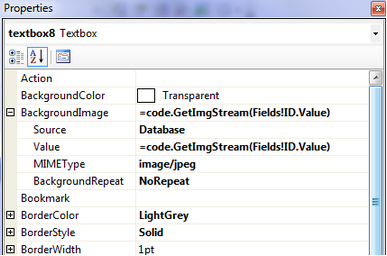
7.Change the "BackgroundImage" property of the text box in the "Barcode" column to display the barcode image.
A. Source: Select the Database from the drop-down list, since the data will be pulled from a database field.
B. Value: Enter the string "=code.GetImgStream(Fields!ID.Value)", it will ask the report to use the GetImgStream() function to retrieve the barcode image byte stream for the ID field value of the database.
C. MIMEType: Select the image/jpeg from the drop-down list, since the barcode image is in jpeg format.
D. BackgroundRepeat: Select the NoRepeat from the drop-down list, so only one image will be placed in the text box.
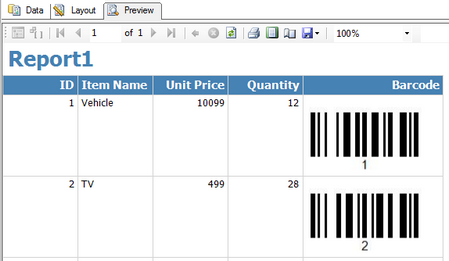
8.Click the "Preview" tab to view barcodes.
9.For the reporting services deployment, check out Microsoft Knowledge Base article 842419 with the title "How to grant permissions to a custom assembly that is referenced in a report in Reporting Services", it is required to update the security settings of the .NET Framework to allow the MW6.SDK.dll assembly to run properly.