How to Generate Barcodes in RDLC Reports? |
  
|
How to Generate Barcodes in RDLC Reports? |
|
Follow the instructions below step by step:
1.Create a Windows Application.

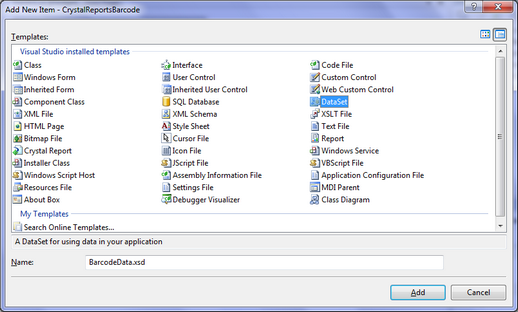
2.Add a new DataSet to the project.
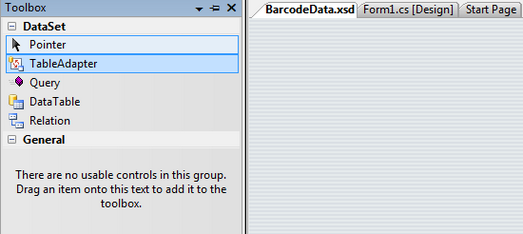
3.Add a TableAdapter to the newly created DataSet, and follow the wizard instructions to finish the configuring process.
4.Add a new Column to the DataTable.
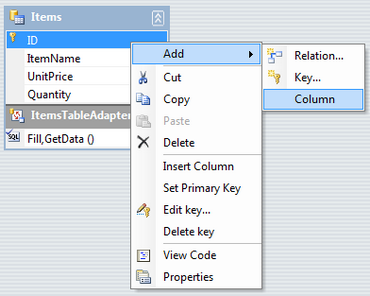
5.Change the data type of the newly created Column by manually entering System.Byte[] there.

6.Add a new Report item to the project.
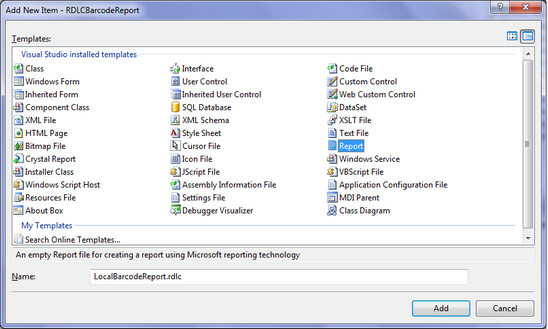
7.Click "Data" > "Show Data Sources" to view the data source.

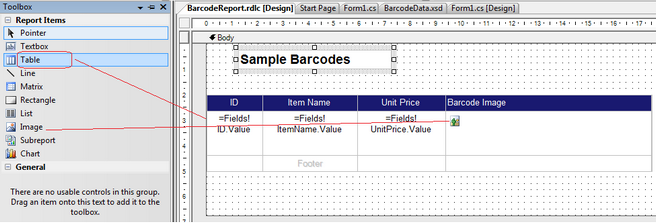
8.Drag and drop a Table control and a few other controls including an Image control onto the report.
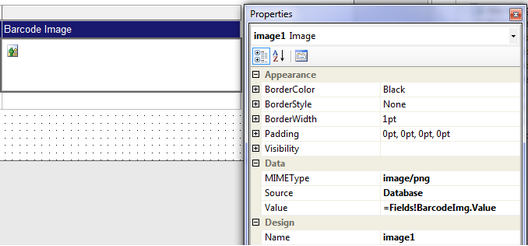
9.Change the properties of the Image control to connect it to a data table field with System.Byte[] data type.
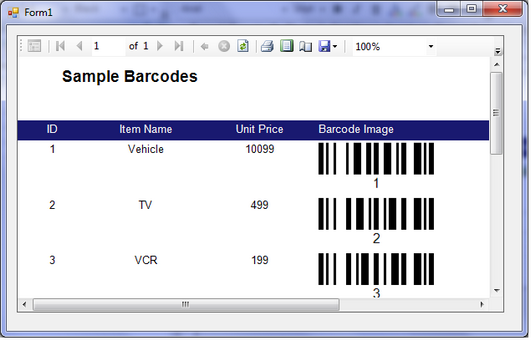
10. Drag and drop a ReportViewer control onto a Windows Form.
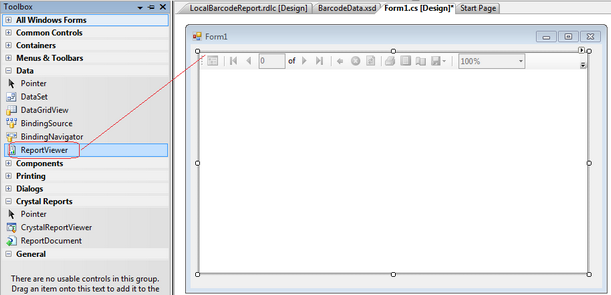
11. Connect the newly created ReportView control to the previously created Report.
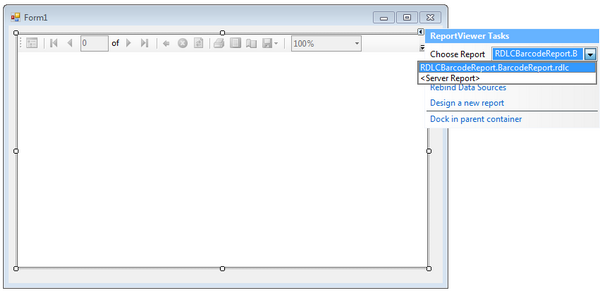
12. From the Solution Explorer, add a reference to MW6.SDK.dll.

13. Add the following code in the Form_Load event procedure, you could modify the code a bit to meet your application barcoding requirements.
C# Code
private void Form1_Load(object sender, EventArgs e) { int ActualWidth = 0; int ActualHeight = 0;
this.ItemsTableAdapter.Fill(this.BarcodeData.Items);
// Create a BarcodeNet class instance MW6.SDK.Barcode.BarcodeNet objBC = new MW6.SDK.Barcode.BarcodeNet();
objBC.SymbologyType = MW6.SDK.Barcode.enumSymbologyType.Code_128; objBC.BarHeight = (float)1.0; objBC.NarrowBarWidth = (float)0.07; objBC.CheckDigit = false; objBC.ShowText = true;
foreach (BarcodeData.ItemsRow dataRow in this.BarcodeData.Items.Rows) { System.IO.MemoryStream MS = new System.IO.MemoryStream();
objBC.Data = dataRow.ID.ToString();
// Get the actual barcode width and height // Render the barcode on the computer screen objBC.GetActualSize(true, null, ref ActualWidth, ref ActualHeight);
// Image size = barcode size + extra space objBC.SetSize(ActualWidth + 10, ActualHeight + 20);
// Save the barcode image in the memory using the Jpeg format objBC.SaveAsMemory(MS, System.Drawing.Imaging.ImageFormat.Png);
dataRow.BarcodeImg = MS.ToArray(); }
this.reportViewer1.RefreshReport(); } |
VB.NET Code
Private Sub Form1_Load(ByVal sender As Object, ByVal e As System.EventArgs) Handles Me.Load Dim ActualWidth As Integer Dim ActualHeight As Integer ActualWidth = 0 ActualHeight = 0
' Fill the DataTable Me.ItemsTableAdapter.Fill(Me.BarcodeData.Items)
' Create a BarcodeNet class instance Dim objBC As New MW6.SDK.Barcode.BarcodeNet()
objBC.SymbologyType = MW6.SDK.Barcode.enumSymbologyType.Code_128 objBC.BarHeight = 2.0f objBC.NarrowBarWidth = 0.07f objBC.CheckDigit = False objBC.ShowText = True
Dim dataRow As BarcodeData.ItemsRow For Each dataRow In Me.BarcodeData.Items.Rows Dim MS As New System.IO.MemoryStream()
objBC.Data = dataRow.ID.ToString()
' Get the actual barcode width and height ' Render the barcode on the computer screen objBC.GetActualSize(True, Nothing, ActualWidth, ActualHeight)
' Image size = barcode size + extra space objBC.SetSize(ActualWidth + 10, ActualHeight + 20)
' Save the barcode image in memory using Jpeg format objBC.SaveAsMemory(MS, System.Drawing.Imaging.ImageFormat.Jpeg)
dataRow.BarcodeImg = MS.ToArray Next
Me.reportViewer1.RefreshReport() End Sub |
14. Run the application to view the barcodes.