Mail Merge |
  
|
Mail Merge |
|
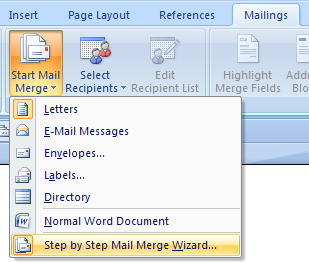
1.Click on "Mailings", then click on "Start Mail Merge". A drop-down list appears as shown below, select the last option "Step by Step Mail Merge Wizard".
2.Select a document type and click on "Next: Starting document".

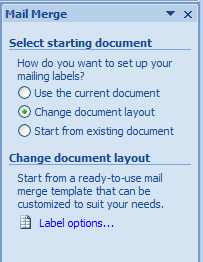
3.Click on "Change document layout", then choose an appropriate option and click "Ok", click on "Next: Select recipients".
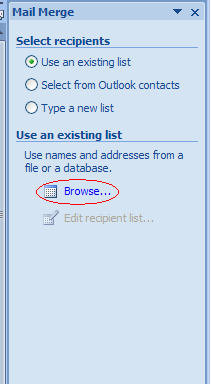
4.Select "Use an existing list" and click on "Browser" link, choose "MW6_Code128_Font.accdb" database as an existing list, click "Next: Arrange your labels".
5.Surround the string which will be converted to Code128 barcode with the "<" and ">" characters.
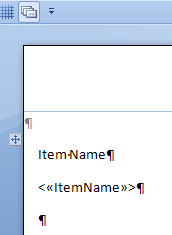
6.Click on "Next: Preview your letters", then click on "Next: Complete the merge".
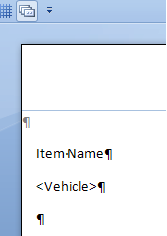
7.Click on "Edit individual letters", this opens up "Merge to New Document" dialog, click on "All" and then click on "OK" button.

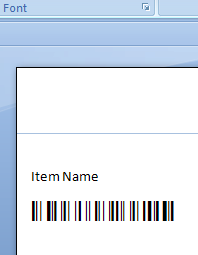
8.Click on "Add-Ins", then click on "Convert All" to create Code128 barcodes.