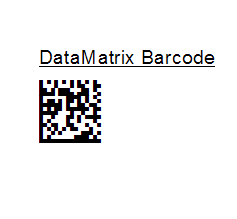
How To Use It |
  
|
How To Use It |
|
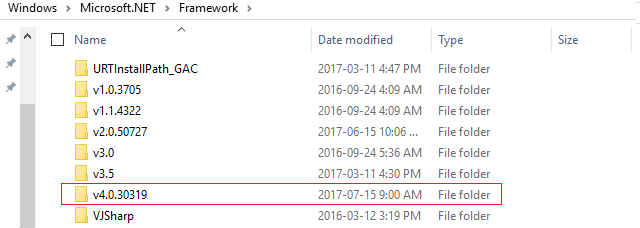
1.For 32-bit version of Crystal Reports, unzip UFL_32.ZIP and put CRUFLDM.dll in SysWow64 folder (64-bit version of Windows OS) or system32 folder (32-bit version of Windows OS). Run the following command as "Run as administrator", and the ver_num is the version number for 32-bit version of .NET framework.
C:\Windows\Microsoft.NET\Framework\ver_num\RegAsm.exe /codebase C:\Windows\SysWow64\CRUFLDM.dll
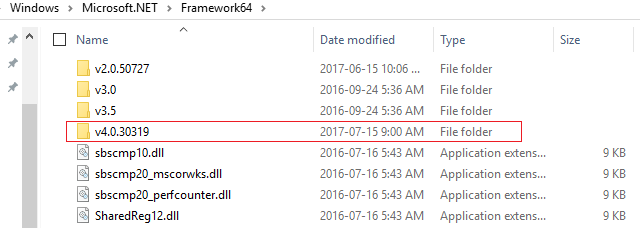
2.For 64-bit version of Crystal Reports, unzip UFL_64.ZIP and put CRUFLDM.dll in system32 folder. Run the following command as "Run as administrator", and the ver_num is the version number for 64-bit version of .NET framework.
C:\Windows\Microsoft.NET\Framework64\ver_num\RegAsm.exe /codebase C:\Windows\System32\CRUFLDM.dll
3.Open up Crystal Reports, go to "Field Explorer", right click on "Formula Fields", click on "New", enter "DataMatrix Barcode", copy the following code into the Formula Editor area. Please check the sub-node "COM and .NET UFLs (u212com.dll)" or "Visual Basic (u21com.dll") under the node "Additional Functions" if you have difficulty locating DataMatrix font related functions.
stringVar OrigStr := ToText({TableName.FieldName}); numberVar EncodingMode := 0; numberVar PreferredFormat := 0; booleanVar HandleTilde := true;
numberVar BlockCount := DMFontEncode (OrigStr,EncodingMode,PreferredFormat,HandleTilde);
stringVar FinalBarcodeStr := ""; numbervar i := 0; For i := 1 to BlockCount Do ( FinalBarcodeStr := FinalBarcodeStr + DMFontGetBlock (i - 1); );
FinalBarcodeStr
|
4.Change a few values to meet your application requirements, click "Save" and close this window.

5.Click on the formula field "DataMatrix Barcode" and drag it on the report.
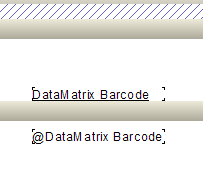
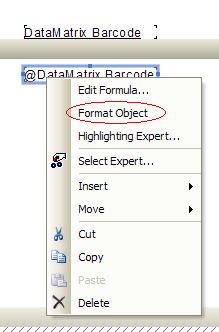
6.Right-click "@DataMatrix Barcode" and choose "Format Object".
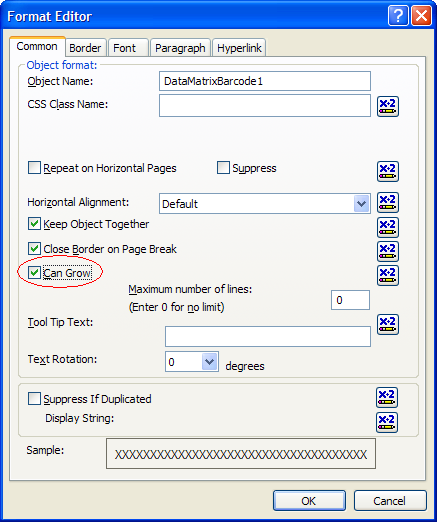
7.Toggle on "Can Grow" check box under "Common" tab.
8. Choose "MW6 Matrix" as the font name under "Font" tab.

9. Run the report.