Installation and Testing |
  
|
Installation and Testing |
|
1.The trial version Barcode ASP component adds "MW6 Demo" at the top of barcode.
2.For 32-bit version Windows OS, go to the 32-bit system folder (e.g. "c:\winnt\system32" or "c:\windows\system32") of the IIS server. For 64-bit version Windows OS, go to the SysWOW64 folder (e.g. "c:\windows\SysWOW64") of the IIS server. Copy "MW6BarcodeASP.dll" to the current folder.
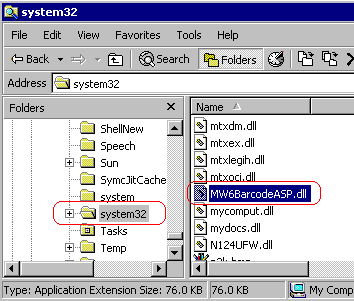
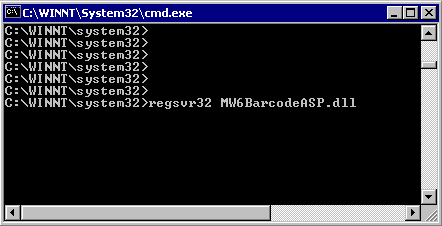
3.From the current folder, run "regsvr32 MW6BarcodeASP.dll" to register it. For Windows Vista or above, you need to use an elevated Command Prompt to run regsvr32.exe command, click "Start" > "All Programs" > "Accessories", right-click "Command Prompt", and then click "Run as administrator".
4.Copy Demo.html, CreateImg.asp and Show.asp to a folder of the IIS server where Active Server Pages are enabled, for example, you can create one folder "C:\Inetpub\wwwroot\MyFolder" and copy those 3 files to this folder.
5.Enter the URL of Demo.html to your browser for verifying whether Barcode ASP component is working or not, for example, you can enter http://localhost/MyFolder/Demo.html for testing it on the IIS server itself.