Access |
  
|
Access |
|
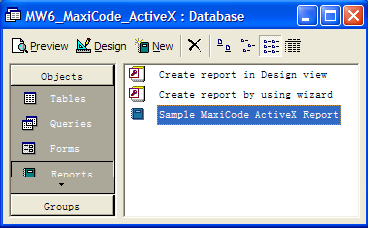
1. Open MW6_MaxiCode_ActiveX.mdb, select "Sample MaxiCode ActiveX Report".
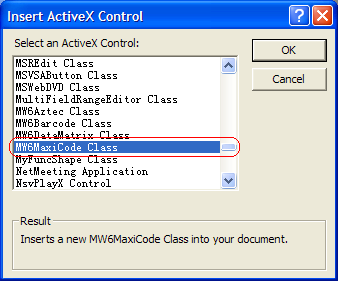
2. Click on "Design", insert MW6 MaxiCode ActiveX control into the report.
3. Change its properties to meet your application requirements, our MaxiCode ActiveX supports the data binding so you can bind a field in a database to the control and generate MaxiCode barcodes for each data record automatically, there's an arrow on the right side of the "Control Source" property, click on the arrow, a list opens with all the fields, select the field you want for the control.

4. If you do not want to use the data binding feature, you can customize "Private Sub Detail_Print(Cancel As Integer, PrintCount As Integer)" to create MaxiCode barcodes dynamically.

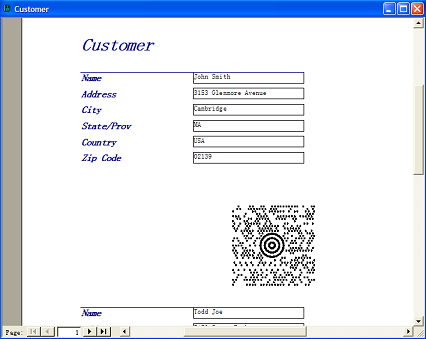
4. Click on "Preview" to view MaxiCode barcodes.