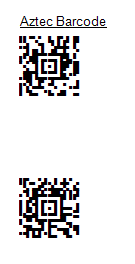
How To Use It |
  
|
How To Use It |
|
1.The old versions (prior to V9) of Crystal Reports have the limitation for the string length (< 256 characters), the MW6 Aztec UFL encoder function can easily produce a string with more than 255 characters, so please upgrade your Crystal Reports to version 9 in order to add powerful Aztec barcode into your reports.
2.Go to the folder where u2lcom.dll is located and copy CRUFLAtc.dll there, and this folder varies depending on your version of Crystal Reports. If you are running a 64 bit version of Windows OS such as Windows Vista 64 bit or Windows 7 64 bit, you may need to look in "C:\Program Files (x86)" rather than "C:\Program Files" folder.
Version |
Folder |
Crystal Reports 2013 |
C:\Program Files\SAP BusinessObjects\SAP BusinessObjects Enterprise XI 4.0\win32_x86 |
Crystal Reports 14 (CR2011) |
C:\Program Files\Common Files\Business Objects\3.0\bin |
Crystal Reports 12 (CR2008) |
C:\Program Files\Common Files\Business Objects\3.0\bin or C:\Program Files\Business Objects\BusinessObjects Enterprise 12.0\win32_x86 |
Crystal Reports 11 R2 (XI R2) |
C:\Program Files\Business Objects\common\3.5\bin |
Crystal Reports 11 (XI) |
C:\Program Files\Common Files\Business Objects\3.0\bin |
Crystal Reports.Net 10.2 |
C:\Program Files\Common Files\Business Objects\2.7\Bin |
Crystal Reports 10 |
C:\Program Files\Common Files\Crystal Decisions\2.5\bin |
Crystal Reports 9 |
C:\Program Files\Common Files\Crystal Decisions\2.0\bin |
Crystal Reports for Visual Studio 2003 |
C:\Program Files\Common Files\Crystal Decisions\1.1\bin |
Crystal Reports.Net 1.0 |
C:\Program Files\Common Files\Crystal Decisions\1.0\bin |
3.For Windows Vista or above, you need to use an elevated Command Prompt to run regsvr32.exe command, click "Start" > "All Programs" > "Accessories", right-click "Command Prompt", and then click "Run" as administrator.
4.For 32-bit version Windows OS, run "regsvr32 CRUFLAtc.dll" to register it. Copy "AztecFont.dll" to the windows 32-bit system folder (e.g.,"C:\winnt\system32" or "C:\windows\system32") and move to the step 6.
5.For 64-bit version Windows OS, run "C:\windows\SysWOW64\regsvr32 CRUFLAtc.dll" to register it. Copy "AztecFont.dll" to the windows 32-bit system folder, which is "C:\windows\SysWOW64".
6.Open up Crystal Reports, go to "Field Explorer", right click on "Formula Fields", click on "New", enter "Aztec Barcode", copy the following code into the Formula Editor area. Please check the sub-node "COM and .NET UFLs (u212com.dll)" or "Visual Basic (u21com.dll") under the node "Additional Functions" if you have difficulty locating Aztec font related functions.
stringVar OrigStr := ToText({TableName.FieldName}); numberVar EncodingMode := 0; numberVar ECL := 23; numberVar PreferredFormat := 0; booleanVar HandleTilde := true;
numberVar BlockCount := AtcUFLMW6Encoder (OrigStr,EncodingMode,ECL,PreferredFormat,HandleTilde,false,0,0);
stringVar FinalBarcodeStr := ""; numbervar i := 0; For i := 1 to BlockCount Do ( FinalBarcodeStr := FinalBarcodeStr + AtcUFLMW6GetBlock (i - 1); );
FinalBarcodeStr
|
7.Change a few values to meet your application requirements, click "Save" and close this window.

8.Click on the formula field "Aztec Barcode" and drag it on the report.
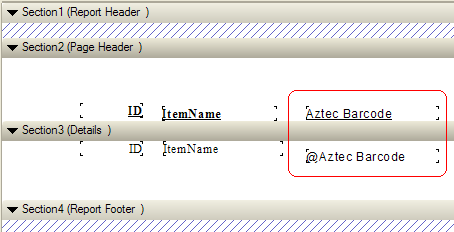
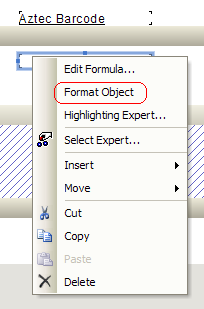
9.Right-click "@Aztec Barcode" and choose "Format Object".
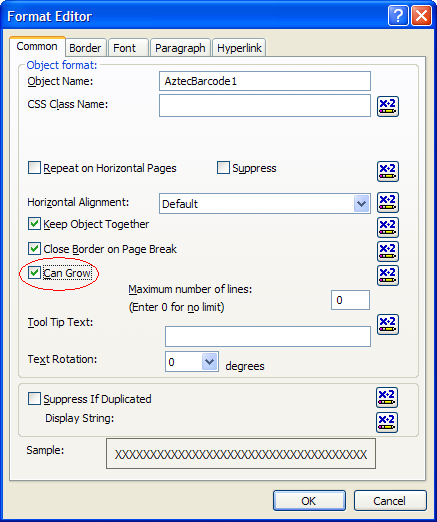
10.Toggle on "Can Grow" check box under "Common" tab.
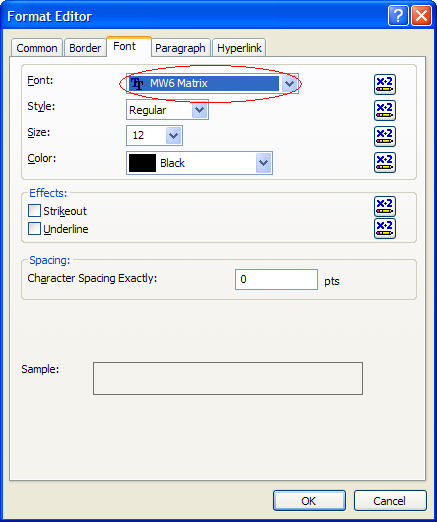
11. Choose "MW6 Matrix" as the font name under "Font" tab.
12. Run the report.